
The Error
Single Touch Payroll (STP) is a requirement introduced by the ATO for reporting payroll data directly from the payroll software at the same time as your employees are paid.
STP reporting is required from 1 July 2018 for employers with 20 or more employees, and is required for all employers from 1 July 2019.
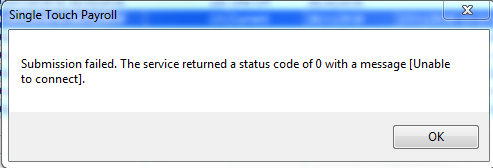
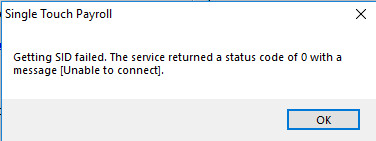
Successful STP reporting relies on a secure internet connection from Exo Payroll to MYOB's system and then to the ATO. Connection problems can sometimes block initial STP setup or ongoing reporting, leading to an error message along these lines:
Disclaimer: This information about how to use MYOB Exo Employer Services is of a generic nature and is based on information supplied by MYOB. Not to be relied on for legal, accounting or employment advice.
The Common Solution
The common solution to this issue is to delete your current Security / SSL Certificate for MYOB Exo Employer Services to prompt the system to create a valid certificate for you. To be able to submit the pay run data to the ATO via STP you will be required to have the software authorised with the ATO using your Software ID. The Software ID can be viewed by using the 'Get Software Identifier' button in the Software Identifier section of the Single Touch Payroll Setup area of the Setup Payroll screen. After an Exo Employer Services upgrade or during the 'Get Software Identifier' process, errors can occasionally occur such as Getting SID failed. The service returned a status code of 0 with a message Unable to connect.
Re-create Your Security Certificate
Follow these steps to see if your Security Certificate can be refreshed by removing it from your Personal Certificate Store and running the Get Software Identifier process again.
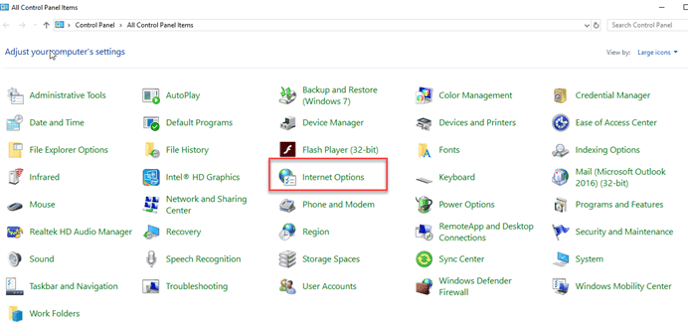
- First, you need to remove your existing Security / SSL Certificate. This can be done by selecting Control Panel > Internet Options as illustrated below.
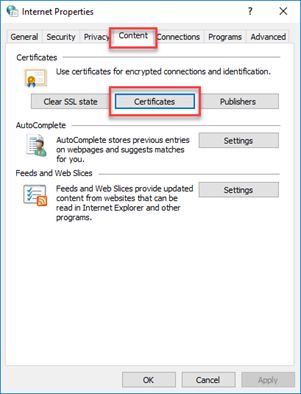
- Next, select the content tab and then certificates, as illustrated below.
- Under the 'Personal' tab, your Exo Payroll Security Certificates will be displayed as shown in the figure below.
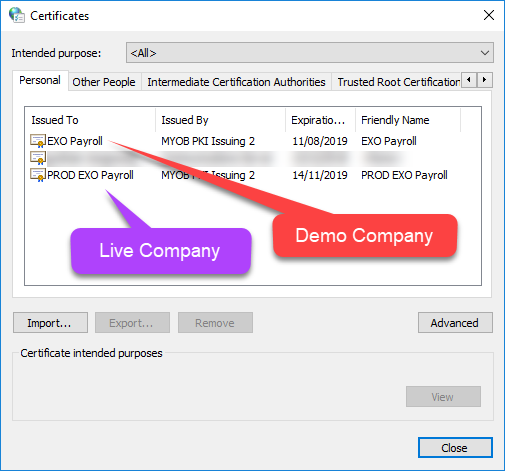
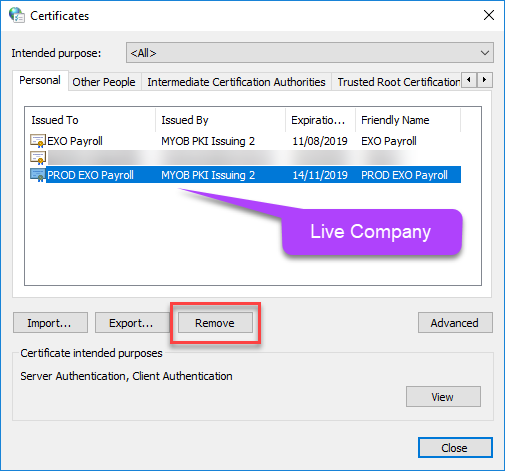
- The Live Company Security Certificates can then be highlighted and removed, as illustrated below.
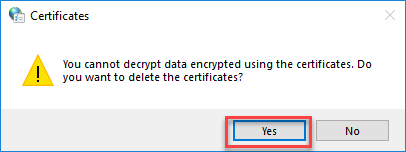
- You will be prompted to confirm the deletion. Click 'yes'.
- Then run the 'Get Software Identifier' process in Exo Payroll by following this menu path: Utilities > Set Up Exo Payroll > Single Touch Payroll > Get Software ID.
- If an error occurs, check to see if the Security Certificate has been re-created by checking in your Personal Certificate Store (follow steps 1 to 3 above) and:
- If the Security Certificate has been re-created, proceed with the next trouble-shooting step (TLS 1.2 compatibility).
- If the Security Certificate has not been re-created, please contact our Support Desk by emailing us or calling us on 1300 733 071.
If re-generating your Security Certificate does not resolve the error, refer to Error 0 - Other Solutions
Related Articles
- Error 0 When Submitting an STP Event - Other Solutions
- Single Touch Payroll Errors
Questions?
If you have more questions, please contact BusinessHub's support desk on 1300 733 071 or raise a Support Case.