
Introduction
MYOB Exo Employer Services can either be upgraded:
- Online, using the in-application function; or
- Manually, by downloading and installing the most recent version of MYOB Exo Employer Services from MYOB's website.
We generally recommend the manual upgrade process, as this provides greater user control.
If you are running a terminal server, click here for additional instructions.
Disclaimer: This information about how to use MYOB Exo Employer Services is of a generic nature and is based on information supplied by MYOB. Not to be relied on for legal, accounting or employment advice.
Before You Proceed
The current version of MYOB's Release Notes is available here.
You can also click here to refer to historical versions of MYOB's Release Notes.
Here is our pre-installation / pre-upgrade checklist.
- Check that your computer system meets the MYOB Exo Employer Services System Requirements.
- Read the Release Notes for the version that you are installing.
- Ensure that there are no open pays within the system (either Current Pays or One Off Pays).
- Before you upgrade, you should perform a backup of your current database.
- Ensure that all users have closed their MYOB EXO Employer Services applications.
- A Windows user account with administrative privileges should perform the upgrade. If your software is installed on a server, your upgrade must be completed on the server by the administrator.
- If you have multiple computers set up to run MYOB Exo Payroll across a network, you must run the upgrade on the system that houses the database.
- Close all programs running on the computer on which you are installing this upgrade.
Security Software Warnings During Upgrade
Upgrade files are sometimes blocked by, or cause warning messages from, IT security settings and software. In this case, running the upgrade might require assistance from Client's IT support.
Antivirus software warnings - a response or change in virus definitions from the software provider can take time. In this situation, one option is to temporarily disable the antivirus software while the upgrade completes. Your IT consultant might need to assist with this.
Upgrading Online
If you do not take a backup before starting the upgrade process, we strongly recommend that you select all payroll companies for backup at step 7.
Follow these steps to upgrade an existing installation of MYOB EXO Employer Services from within the application using the Upgrade Software Online function.
- Open your MYOB Exo Employer Services application and log into any one of your payroll companies.
- Go to the Help menu and select Upgrade Software Online.
The Employer Services Update wizard checks for updates, and displays the Update Available window for this release.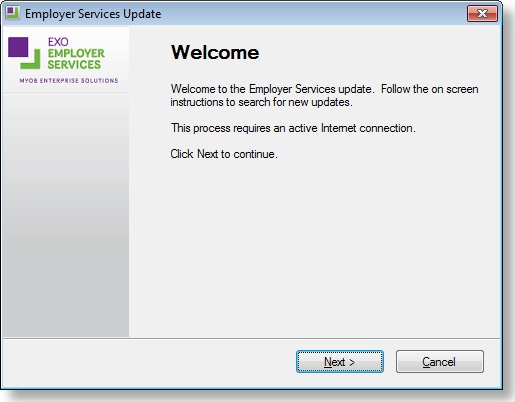
- Click Next.
- Follow through the steps in the Upgrade Wizard, clicking Next when prompted to move to the next window. Note that while the upgrade process only downloads the changed and new files required for this upgrade, the download may still take several minutes to install.
- When the upgrade is complete, click Finish. MYOB Exo Employer Services is launched, and the Upgrade Software window is displayed.
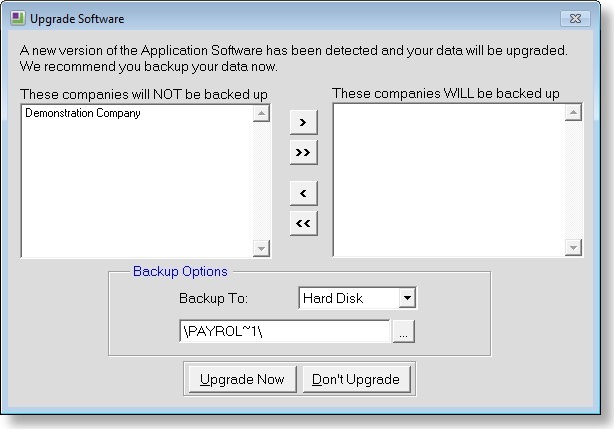
- Use the arrow buttons to move companies between the “WILL be backed up” and “will NOT be backed up” lists. During the upgrade, a backup will be made for each of the companies listed on the right of the screen.
Note: If you did not take a backup prior to starting the upgrade process, it is strongly suggested that you select all payroll companies for backup. - Click Upgrade Now. If you chose to back up your companies, the backup will be performed before that company’s data is upgraded. As each company is upgraded, you will see the names of the files being upgraded in the top right hand corner of your screen. Do not interrupt this process. It may take several minutes.
- You may be prompted to “Convert 3.0 resource file to 6.0 format”. Click Yes.
- Once the upgrade process has finished, you will be returned to the company selection window. You can now continue using the software in the normal way.
Note for terminal server installations:
Always use Install Mode when installing on a Terminal Server, click here for details.
When upgrading a Terminal Services/Citrix server, it is possible to use the Upgrade Software Online function to upgrade the installation. However, after the upgrade is complete, Network.exe must be run from the Add or Remove Programs window to complete the upgrade
Click here for further instructions on running Network.exe.
Upgrading Manually
If you are located in Australia:
If you are doing the upgrade manually, click here to download the latest version (executable file).
If you would like to download the upgrade file and save it to a USB, click here (zip file).
Click here for MYOB's release notes for latest release.
If you are located in New Zealand:
Click here to download the latest version (executable file).
If you would like to download the upgrade file and save it to a USB, click here (zip file).
Click here for MYOB's release notes for the latest release.
If you do not take a backup before starting the upgrade process, we strongly recommend that you select all payroll companies for backup at step 13.
- Download the installation file "AustUpgrades.exe" file for Australian version or "Upgrades.exe" file for the NZ version, to your computer so that you are able to find it again, for example to My Documents or the Desktop.
- The Austupgrades.exe file can be Executed while the Program is closed, in this case you will need to respond to questions regarding Location and Modules to be installed.
See step 3
OR
The Upgrade can be initiated from the HELP screen within the software
see step 4 - Executing the Installer
- Close all programs running on the computer on which you are installing this upgrade.
- Select the AustUpgrades.exe file and Execute.
- Skip to Point 5.
- Using Upgrade Software from the HELP Menu within the software allows you to select the file to Upgrade from and will proceed through the Upgrade process without requesting information along the way
- Open the Software
- Open MYOB Exo Employer Services and select Upgrade Software from the Help menu.
.png?width=670&height=435&name=HELPUpgradeSoftware%20(1).png)
- Click the ellipses button.
.png?width=670&height=391&name=HELPSelectfile%20Location%20(1).png)
The Navigation window opens. - Browse to the relevant location, select the appropriate upgrades or austupgrades executable file and click OK.
.png?width=670&height=400&name=HELPSelectUpgradefile%20(1).png)
The upgrade wizard opens.
- Click Next on the Welcome screen.
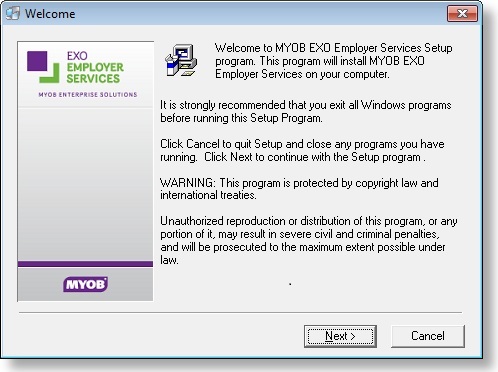
- Read the licence agreement, then select I accept the agreement and click Next.
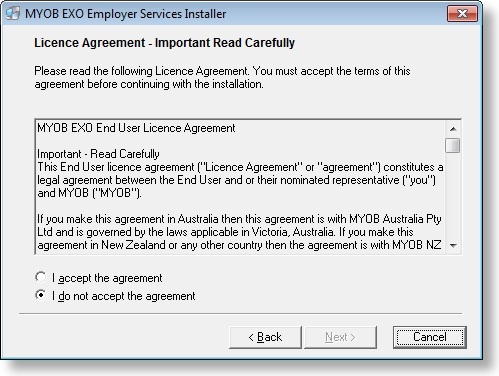
The wizard continues. If you executed from within the software, skip to point 9. - Note: This step is not required if upgrading from within the software.
Review the Destination Folder and if correct, click Next.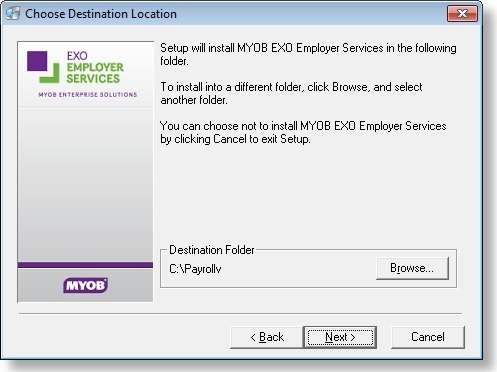
Note: When upgrading in this manner, the existing destination folder appears, make sure to install the upgrade into the existing install location. This location is displayed on the About window in MYOB Exo Employer Services-check the Installed in field. Alternatively, right-click on the MYOB EXO Employer Services icon on your desktop, select Properties and check the Target field to see where the application is installed.
The Select Components screen opens showing the current modules you are licenced for. - Note: This step is not required if upgrading from within the software.
Review the MYOB Exo Employer Services components shown and selected. Make any changes as required and click Next.
The Program Manager Group screen appears. - Specify where the MYOB Exo Employer Services shortcuts should be located in the Windows Start menu, then click Next.
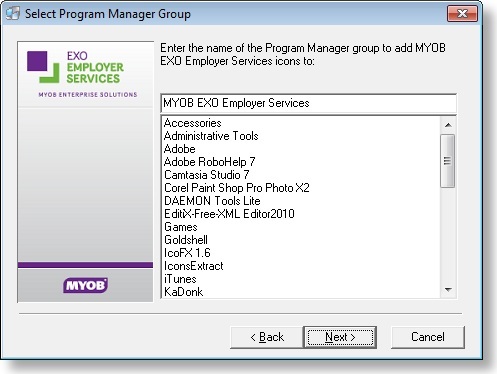
The installation is ready to begin. - Click Next to proceed.
Note: If you need to change any details, click Back to return to the previous screen and change your selections.
The installation progress is displayed.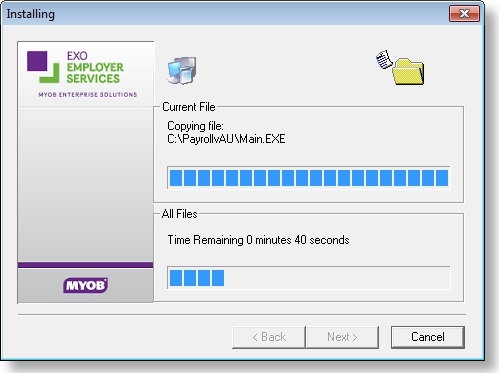
- Once the installation is complete, click Finish to close the installation wizard.
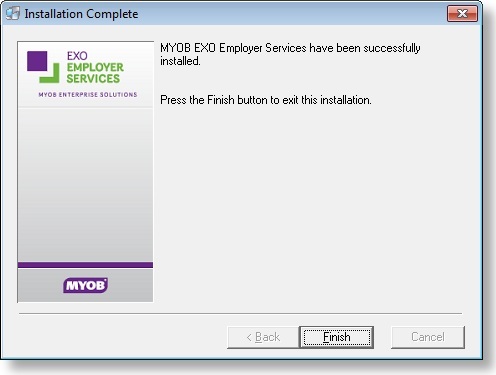
- Open MYOB Exo Employer Services. -
Note: if upgrading from the Help Menu, this will be launched automatically
The Upgrade Software window is displayed. - Use the arrow buttons to move companies between the “WILL be backed up” and “will NOT be backed up” lists. During the upgrade, a backup will be made for each of the companies listed on the right of the screen.
Note: If you did not take a backup prior to starting the upgrade process, it is strongly suggested that you select all payroll companies for backup. - Click Upgrade Now. If you chose to back up your companies, the backup will be performed before that company’s data is upgraded. As each company is upgraded, you will see the names of the files being upgraded in the top right hand corner of your screen. Do not interrupt this process. It may take several minutes.
- You may be prompted to “Convert 3.0 resource file to 6.0 format”. Click Yes.
- Once the upgrade process has finished, you will be returned to the company selection window. You can now continue using the software in the normal way.
Note for Client/Server installations:
If you have other workstations set up to run MYOB Exo Employer Services across a network, the system will check to see if the necessary support files are in place and if the version number is up to date. If the system needs these files to be updated then the install program will run automatically. You no longer need to run the Network.exe program manually to install the support files on other workstations. Click here for further details on how to run Network.exe.
Note for terminal server installations:
If you are upgrading on a terminal server, an administrator will need to run the upgrade file through the Add and Remove programs feature. Click here for details.
Confirming the Upgrade is Successful
After the installation is complete, the version numbers of all MYOB Exo Employer Services applications should be checked to see if they match the release version being installed.
To check that this release installed successfully, check the versions displayed on the About window against what is shown in the release notes.
To open the About window, follow this menu path: Help menu > About.
Related Articles
Questions?
If you have more questions, please contact BusinessHub's support desk on 1300 733 071 or raise a Support Case.