
Disclaimer: This information about how to use MYOB Acumatica is of a generic nature and is based on information supplied by MYOB. Not to be relied on for legal, accounting or employment advice. Screenshots are examples only and contain demo data so any resemblance to personal information is coincidental.
From MYOB Acumatica R2024.1 onwards, 2FA is mandatory for Payroll users and for applying for Bank Feeds. On the **Users** screen, you will now see a checkbox labelled **Forbid User to Sign in with Password**. This setting is designed to ensure Payroll users sign in using 2FA rather than their green button credentials.
From Version 2025.1 and above, this checkbox will be automatically selected. It is therefore important that you register for 2FA and link it to your account in advance, so you do not experience any login issues.
How to Register for 2FA
- Sign in to MYOB Acumatica as normal.
- Navigate to the External Identity Management Screen (MYSM2065).
- Select the checkbox next to your Username.
- Click Associate External Identity.

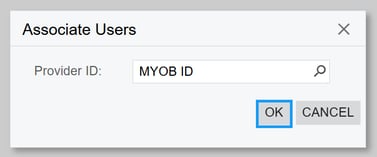
- A pop-up box will appear with MYOB ID pre-populated in the Provider ID field.
- Click OK.
- The "Sign Up to MYOB" screen opens.
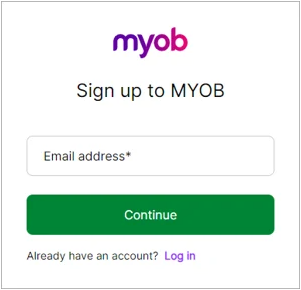
- Enter your email address and click Continue.
Follow the instructions to set up a new MYOB 2FA account. - Once the 2FA account has been created you'll be returned back to the External Identity Management screen and will see a 'User Key' token has been created. This confirms your login credentials have now been associated successfully and you can sign in with the purple 'Sign in with MYOBID' button going forward.
If you have an Existing 2FA Account
If you already have a 2FA account registered from a different MYOB product or from MYOB Academy or the Community Forum, at Step 7 click 'Already have an account? Log in' and enter your existing MYOB 2FA credentials.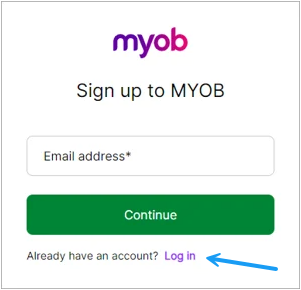
Once you have signed in you'll be taken back to the External Identity Management screen in MYOB Acumatica and you can sign in with your 2FA credentials going forward.
Why can't I sign in after the upgrade?
If you try to sign in after an upgrade and receive the below error message, this indicates that the 'Forbid Login with Password' checkbox has been automatically been ticked by the system and your MYOB 2FA account has not been associated with your MYOB Acumatica credentials prior to the upgrade.
To resolve the issue sign in with your normal username, password and green sign in button.
If you have a 2FA account, this will then automatically associate your 2FA account and going forward you can sign in with with purple 'Sign in with MYOBID' button.
If you are still unable to log in and are on Version 2024.1 or above, ask an Administrator with a Full User licence to clear the Forbid Login with Password checkbox on your user profile. Once this has been updated, you will be able to sign in using your standard login credentials and then complete steps 2–9 above.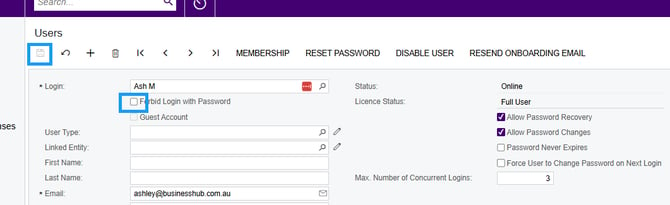
If you are on version 2025.1 or later, please contact support@businesshub.com.au so we can raise a ticket with MYOB to resolve this issue, as the Forbid Login with Password checkbox cannot be cleared.
Questions?
If you have more questions, please contact BusinessHub's support desk on 1300 733 071 or raise a Support Case.