
Error / Issue Description
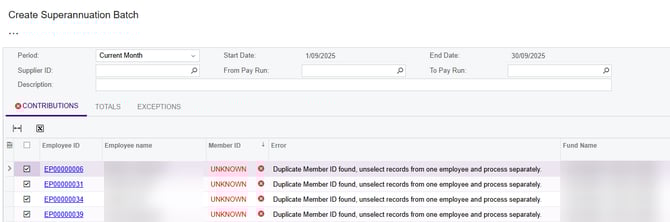
This error occurs when you have more than two or more employees with the same Member ID within the Superannuation Batch.
This can often occur when an employer is using a default superannuation fund and is using the same initial member ID against the employee record. Generally, this is something like “UNKNOWN” or “DEFAULT”.
When creating a super batch within MYOB Acumatica, the system has validation checks to ensure no duplicate member IDs are being included within the batch. This validation will also prevent contributions where multiple employees have contributions for the same fund using the default member ID e.g. “UNKNOWN”.
Disclaimer: This information about how to use MYOB Acumatica is of a generic nature and is based on information supplied by MYOB. Not to be relied on for legal, accounting or employment advice. Data in screenshots is fictional and any resemblance to real personal information is coincidental. BusinessHub makes no warranties in relation to and is not responsible for information contained in third party websites.
Workaround for past pays
To correct the duplicate employee super fund member ID in past pays, you would need to:
- update each employee’s record to include their actual, individual superannuation fund member ID in the Member ID field under their superannuation details (see below); and
- adjust the pay for each affected employee, to update their member ID against the super transactions for past completed pays.
If the number of employees using the default member ID is small, you can get around the error by processing their contributions in separate superannuation fund batches (e.g. create monthly super batches on the Create Superannuation Batch screen if you process pays monthly to avoid having multiple super transactions with duplicate member IDs for the same employee).
For employees who have a self managed superannuation fund, you will need to ensure that they have a different member ID to all other employees, even if the member ID is not used for superannuation processing.
Resolution
You should update each employee’s record to include their actual, individual superannuation fund member ID in the Member ID field under their superannuation details. This ensures compliance and prevents duplication errors in future batch submissions.
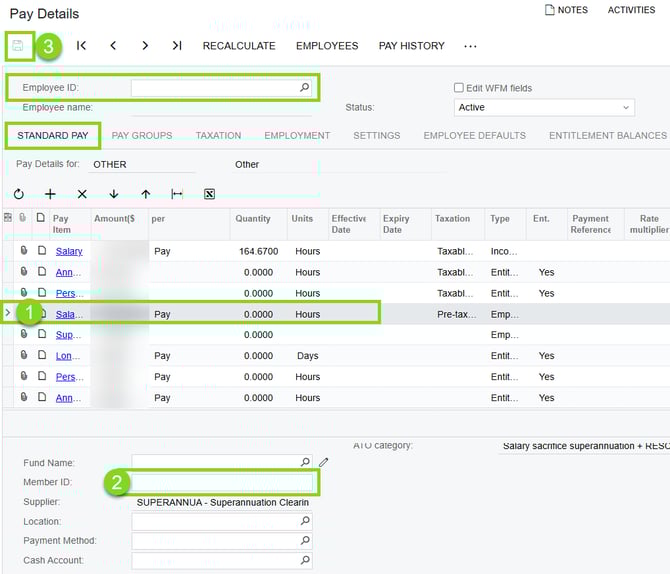
To update these details in MYOB Acumatica Payroll, search or navigate to the Standard Pay tab on the Pay Details (MPPP2310) for the affected employee and:
-
Select the row for Superannuation.
-
Enter the employee’s unique superannuation Member ID.
-
Save the record.
Once updates are complete, reprocess the superannuation batch.
If you are using Workforce Management or Employee Self Service with MYOB Acumatica Payroll, you can ask your employees to update their own details.
- In Workforce Management, the employee should update their member reference under Bank Accounts > Superannuation Information.
- In Employee Self Service, the employee should update their Member ID on the Self Service > Superannuation form.
On the Superannuation Transactions screen (MPPP4300), you can review the Member IDs for a selected range of employees over a selected timeframe.
Related Articles and Resources
- How to add a Superannuation Fund for an Employees in MYOB Acumatica Payroll - How to update an employee's superannuation member ID.
- Create and Process a Superannuation Batch